
WAVLINK USB 3.0/USB C to HDMI Universal Video Adapter
4.4Editor score
Supports Up to 6 Monitors
Universal USB 3.0 Compatibility
Built-in Microphone Input
This guide compares the top Displaylink Adapter options for 2026, evaluating performance, compatibility, and features to help you choose the right dual monitor
Finding the right Displaylink Adapter can transform your single-screen laptop into a powerful dual-monitor workstation. These adapters use advanced technology to bypass native video limitations, allowing you to connect multiple external displays for enhanced productivity and multitasking capabilities.
We have carefully evaluated ten leading Displaylink Adapter models based on their video output quality, system compatibility, and build durability. Each product offers unique features tailored to different users, whether you need high refresh rates for work or portability for travel.
Our reviews highlight the strengths and limitations of each adapter to help you make an informed decision. Remember that software requirements and system performance can vary, so always check compatibility before purchasing. Prices and availability may change over time.
4.4Editor score

4.5Editor score

4.3Editor score
This comparison table provides a quick overview of the key specifications and capabilities across all ten reviewed Displaylink Adapters. Use this reference to compare connection types, supported resolutions, and specific system requirements at a glance.



This Plugable adapter stands out as a top performer for users needing reliable dual monitor setups across different operating systems. It supports dual 4K displays at 60Hz and offers flexibility with both USB-C and USB-A connectivity options.
We may earn a commission when you buy through this link, at no additional cost to you.
The built-in USB-A adapter makes it easy to transition between older and newer laptops without losing extra accessories. Its DisplayLink DL-6950 chipset ensures stable video output, making it perfect for coding, spreadsheets, and web browsing tasks.
While it does not support HDCP-protected content like streaming services, this limitation is common among DisplayLink solutions and acceptable for productivity-focused workflows. The driver requirement on Windows is straightforward and well documented by the manufacturer.
Buyers looking for a reliable workhorse adapter with lifetime North American support should strongly consider this model. It balances performance, compatibility, and long-term reliability better than most competitors in the current market landscape.
The integrated USB-A adapter allows seamless compatibility with older laptops while maintaining USB-C support for modern devices.
Backed by Plugable's lifetime support team, users gain peace of mind for long-term IT deployments and home office setups.
We may earn a commission when you buy through this link, at no additional cost to you.
This WAVLINK adapter offers exceptional value for users needing to expand their screen count without breaking the budget. It supports up to six monitors when used with compatible systems, making it a powerful tool for multi-tasking environments.
We may earn a commission when you buy through this link, at no additional cost to you.
The inclusion of a microphone input and headphone output provides added versatility for video conferencing and media tasks. Its compact size ensures it fits easily into laptop bags while maintaining robust performance across various operating systems.
Although the maximum resolution is limited to 1440p, this remains sufficient for most productivity tasks like browsing and document editing. The driver setup is required but manageable across supported platforms including ChromeOS and Ubuntu.
For users needing to scale their visual workspace economically, this adapter delivers impressive flexibility and performance. It remains a top choice for budget-conscious buyers who do not need ultra-high-definition video output.
Each adapter supports one monitor, but up to six can be connected simultaneously on supported PCs for massive workspace flexibility.
The built-in audio ports allow for easy microphone connections during calls without needing extra dongles.
We may earn a commission when you buy through this link, at no additional cost to you.
Designed with macOS users in mind, this adapter solves the native single external display limitation found in many Mac models. It delivers dual 4K displays at 60Hz through a single USB-C port, enabling powerful productivity setups for professionals.
We may earn a commission when you buy through this link, at no additional cost to you.
While setup requires installing the DisplayLink Manager and granting permissions on macOS, the process is well documented and reliable once configured. This solution is particularly beneficial for users needing multiple screens for coding or design work.
The premium price reflects the specialized engineering aimed at overcoming Apple's hardware restrictions. Performance remains smooth for office apps and productivity software though streaming services remain unsupported due to HDCP constraints.
Mac users seeking the highest quality dual monitor solution should view this as a worthwhile investment. Its specialized focus ensures stable performance where generic adapters might fail or require complex workarounds.
This adapter is specifically designed to bypass the single external display limits on Macs with M1 chips and later.
Tailored for productivity apps, it excels in office environments where screen real estate is critical.
We may earn a commission when you buy through this link, at no additional cost to you.
This ACASIS adapter provides a clean solution for Mac users needing dual displays without cluttering their workspace with extra chargers. The built-in 100W charging port ensures your laptop stays powered while driving external screens.
We may earn a commission when you buy through this link, at no additional cost to you.
Its aluminum casing helps dissipate heat during extended use keeping performance stable under load. The three USB-A ports allow easy connection of mice keyboards and flash drives making it a functional hub as well.
While it supports the latest Mac chips well, users should note it does not support HDCP content for streaming. This limitation makes it best suited for work environments rather than entertainment setups.
For MacBook owners seeking a portable all-in-one solution for dual monitors and charging this adapter delivers strong value. It balances utility and design effectively for daily professional use.
The 100W PD port ensures your laptop charges while the adapter manages dual 4K displays simultaneously.
The sleek aluminum body slides easily into laptop bags making it ideal for commuting or travel.
We may earn a commission when you buy through this link, at no additional cost to you.
This WAVLINK model stands out with its hybrid 2-in-1 cable that simplifies connectivity across different laptop generations. It eliminates the need to carry separate adapters by combining USB-C and USB-A plugs in one compact design.
We may earn a commission when you buy through this link, at no additional cost to you.
The dual 4K output capability ensures sharp visuals for productivity applications and video conferencing. Users on Windows or macOS can expand their screens easily with just the driver installation step.
While the hybrid cable adds convenience it may be slightly less flexible than models with detachable cables. However the convenience of an all-in-one setup often outweighs this minor trade-off for travelers.
Buyers valuing convenience and clean connectivity will appreciate the thoughtful design of this adapter. It remains a practical choice for daily office use and professional presentations.
The 2-in-1 cable allows connection to USB-C, USB-A, Thunderbolt 3/4, and USB 4 ports seamlessly.
An extra six-month warranty extension is available for registered members providing added peace of mind.
We may earn a commission when you buy through this link, at no additional cost to you.
Designed with IT departments in mind this dock includes an Ethernet port for reliable wired network access alongside dual video outputs. This makes it ideal for laptops lacking native networking or needing stable internet connections.
We may earn a commission when you buy through this link, at no additional cost to you.
Its TAA compliance ensures it meets government procurement requirements which is critical for public sector or corporate deployments. The compact form factor reduces desk clutter while maintaining robust functionality.
Because it uses DisplayPort outputs users with HDMI-only monitors will need adapters for compatibility. However many business environments already utilize DP screens making this a seamless upgrade path.
For professional environments needing stable connectivity and compliance features this mini dock delivers reliable performance. It simplifies deployment while maintaining strict security and standards requirements.
The built-in Gigabit Ethernet port ensures stable internet without relying on Wi-Fi during critical tasks.
TAA compliance makes this a safe choice for government and corporate procurement processes.
We may earn a commission when you buy through this link, at no additional cost to you.
This adapter caters to users with DisplayPort monitors offering dual DP ports for extended desktop modes without video flicker. The 100W charging port ensures sustained performance during long work sessions without draining battery life.
We may earn a commission when you buy through this link, at no additional cost to you.
The three USB-A ports allow connection of essential peripherals keeping your workspace organized. Its aluminum build dissipates heat effectively ensuring consistent output even under heavy multitasking loads.
While HDMI users will need DP-to-HDMI cables the performance and compatibility justify the extra step. The high user rating reflects its reliability for Mac users seeking dual-screen setups.
Buyers with DisplayPort monitors will find this adapter a seamless and powerful upgrade for their workstation. It combines charging connectivity and video output in a premium package.
Dual DP ports ensure true extended desktop modes without screen flicker or blackout during use.
The 100W PD port provides high-speed charging to keep your notebook powered during long sessions.
We may earn a commission when you buy through this link, at no additional cost to you.
This adapter includes encrypted DL-chip technology designed to protect sensitive data during transmission making it suitable for corporate environments. It delivers dual 4K outputs at 60Hz ensuring high-quality visuals for presentations and analysis.
We may earn a commission when you buy through this link, at no additional cost to you.
The support extends to Mac M1-M5 and Windows 10/11 offering broad compatibility for modern workstations. Users should note that Linux or iOS devices remain unsupported which is standard for DisplayLink hardware.
Security-conscious teams will appreciate the added layer of encryption which helps prevent unauthorized access or interception. It maintains high performance while prioritizing data safety during daily operations.
For businesses needing secure dual monitor setups this adapter provides the necessary protection and performance. It stands out as a reliable choice for environments where data security is critical.
DL-chip encryption ensures enterprise-level data protection for sensitive daily operations and workflows.
Supports Windows 10/11 and macOS 11+ with Thunderbolt USB 4 USB-C or USB 3.0.
We may earn a commission when you buy through this link, at no additional cost to you.
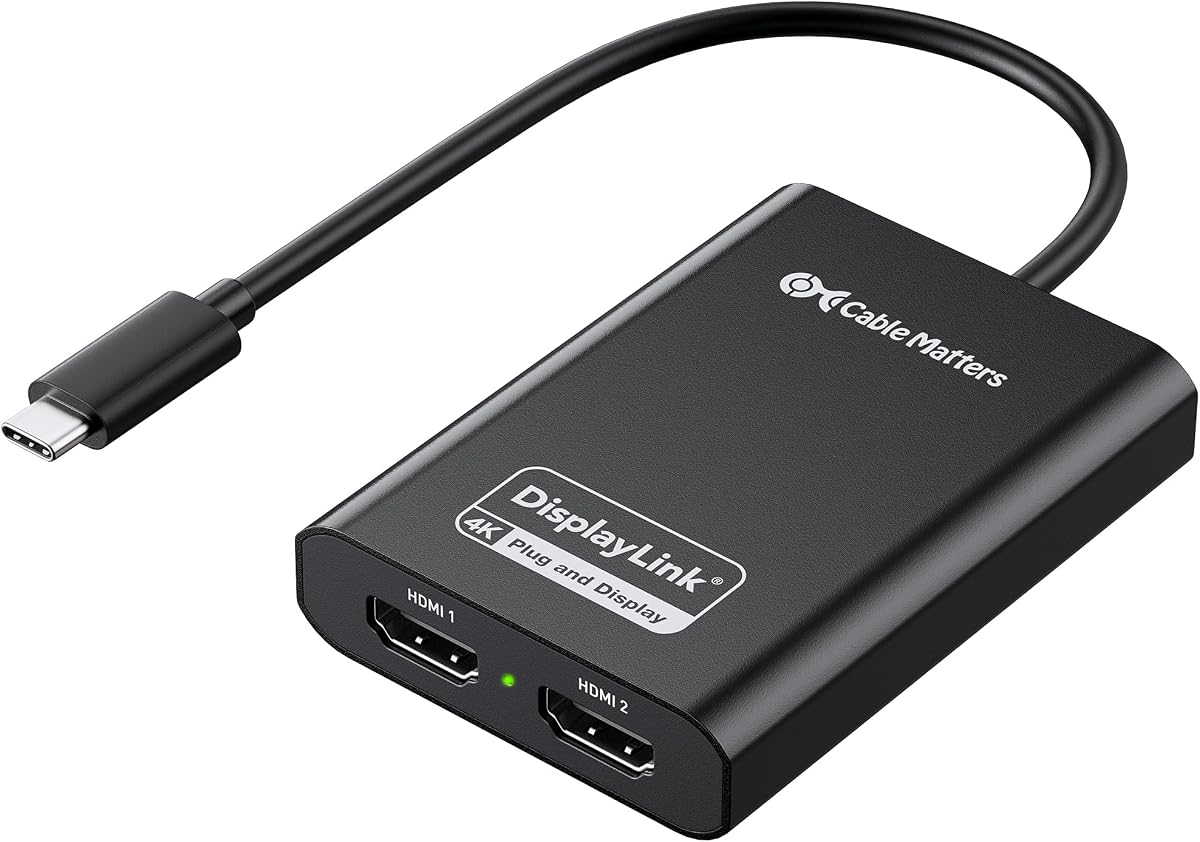
Cable Matters offers a certified solution that eliminates common issues like 30Hz flicker on standard adapters. Its aluminum housing provides durability and heat dissipation ensuring stable long-term performance for daily use.
We may earn a commission when you buy through this link, at no additional cost to you.
Windows users benefit from simplified setup since the adapter supports DisplayLink natively on ChromeOS without extra drivers. Mac users must grant screen recording permissions to ensure full functionality across all apps.
While it performs well for standard workflows users should ensure they have compatible HDMI cables since none are included. The design prioritizes reliability and clear performance for typical office tasks.
Buyers needing a trusted certified adapter for Windows systems will find this model effective and robust. It delivers consistent dual screen performance without compromising on build quality.
DisplayLink certification ensures optimized driver support for reliable dual 4K 60Hz displays.
The premium aluminum enclosure dissipates heat efficiently to maintain stable performance during operation.
We may earn a commission when you buy through this link, at no additional cost to you.
Sonnet offers a premium adapter that supports higher refresh rates like 144Hz at lower resolutions making it versatile for smooth visuals. It includes a USB-A to USB-C adapter for compatibility with various laptop models.
We may earn a commission when you buy through this link, at no additional cost to you.
Ideal for M1 or M2 Macbook users it expands screen real estate while supporting audio transmission to external devices. The sturdy build quality aligns with Sonnet's reputation for reliable professional hardware accessories.
Although it carries a higher price point the performance benefits justify the cost for power users needing fluid motion on screens. It excels in scenarios where standard adapters might introduce lag or flicker.
Buyers wanting premium reliability and high refresh rate support will find this adapter a strong choice. It delivers smooth dual screen performance with excellent build quality for demanding work.
Supports higher refresh rates like 144Hz at lower resolutions for smoother visuals in animations.
Perfect for M1 or M2 Macbook notebooks expanding their workspace without native limits.
We may earn a commission when you buy through this link, at no additional cost to you.
Selecting the right Displaylink Adapter requires understanding your laptop's ports, your operating system, and your display needs. Use this guide to evaluate key factors before purchasing.
Most adapters support up to 4K at 60Hz but some may limit you to 1440p or 30Hz. Always verify that the adapter matches your monitor's native resolution to avoid flickering or lag during work.
Ensure the adapter supports 4K@60Hz if you need crisp visuals for presentations or spreadsheets.
Windows users can expect plug-and-play on ChromeOS but may need driver installations. Mac users must install the DisplayLink Manager app and grant screen recording permissions for proper functionality.
Check if your OS version is officially supported to avoid setup issues or performance degradation.
Adapters come with USB-A, USB-C, or hybrid cables depending on your laptop model. Choose one that matches your available ports to avoid needing extra dongles or cables.
Hybrid adapters save space and simplify setup for users with mixed laptop generations.
Some adapters include power delivery (PD) ports allowing you to charge your laptop while using external displays. This is essential for travel or when your laptop has limited ports.
Look for adapters with 100W PD if you want to keep your notebook powered during long work sessions.
Many adapters include USB-A ports for mice keyboards and flash drives reducing cable clutter. This extra connectivity can turn a simple adapter into a mini docking station.
Choose models with multiple USB ports if you need to connect several devices simultaneously.
Aluminum housings provide durability and better heat dissipation than plastic options. Consider the size and weight if you travel often with your setup.
Compact and portable designs ensure you can easily pack your adapter in a laptop bag.
Most adapters require driver installation before first use. Ensure the software is available for your OS and that you can download it easily.
Check for clear setup guides to avoid frustration during the initial configuration process.
Look for adapters with lifetime or long-term warranties to protect your investment. Brands with strong North American support teams can resolve issues quickly.
Choose brands with dedicated support channels for reliable assistance if setup or performance issues arise.
To set up your adapter connect it to your laptop via the provided USB port and plug in your monitors using HDMI or DisplayPort cables. Ensure your laptop is turned on during connection to detect the adapter properly.
Install the DisplayLink driver from the manufacturer's website if prompted by your operating system. Grant any required permissions such as screen recording on macOS to enable the adapter functionality.
To care for your adapter keep it in a dry cool place and avoid bending the cable sharply. Regularly update drivers to maintain performance and stability across your system.
Yes, most DisplayLink adapters require driver installation on Windows to function properly. On ChromeOS, they typically work without extra setup, and macOS users need the DisplayLink Manager app and screen recording permissions.
DisplayLink adapters are not recommended for gaming because they rely on software compression. They may introduce lag or stutter, making them better suited for productivity and office applications.
No, DisplayLink adapters do not support HDCP-protected content. Streaming services like Netflix Hulu and Prime Video will not play on these displays but office apps work perfectly.
Most adapters support two monitors simultaneously. Some models allow up to six monitors when multiple adapters are used, depending on your laptop's processing power and USB bandwidth.
Many adapters support dual 4K displays at 60Hz but some budget models may limit resolution to 1440p. Always check the product specs for maximum supported resolution before purchasing.
Yes, DisplayLink adapters work with Mac M1 M2 and later chips after installing the driver. They allow dual external displays on Macs that natively support only one external screen.
Our top picks include the Plugable USB-C & USB-A adapter for overall performance and reliability. For budget buyers the WAVLINK universal adapter offers exceptional value with support for multiple monitors.
When choosing consider your laptop ports system OS requirements and whether you need extra features like power delivery or peripheral ports. The best adapter balances these factors with your daily workflow needs.
Remember to verify current availability and ensure driver support before purchasing. With the right DisplayLink adapter you can transform your laptop into a powerful dual-screen workstation effortlessly.