
Brailliant BI 40X Braille Display
5.0Editor score
40-cell refreshable display
Bluetooth 5 connectivity
KeySoft Lite apps included
This guide compares the top Braille Displays for Blind Users including refreshable models and slates to help you find the right accessibility device for your
Selecting the right Braille Displays for Blind Users is essential for digital accessibility. These devices convert screen text into tactile dots, allowing users to read and write independently. Whether you need a portable slate or a full refreshable display, choosing the right tool impacts your daily workflow.
We evaluated ten leading options based on portability, connectivity, and feature sets. Our comparison covers everything from basic writing slates to advanced electronic displays with Bluetooth support. Each product was assessed for build quality, ease of use, and compatibility with common screen readers and operating systems.
Every pick in this list highlights specific strengths for different user scenarios. From students to professionals, there is a suitable device for every budget and requirement. Please note that pricing and availability can change frequently, so verify current details before making a final purchase decision today.
5.0Editor score

4.8Editor score

4.9Editor score
This table provides a side-by-side overview of the ten selected Braille Displays for Blind Users. Compare key specifications like cell count, material, and connectivity to determine which device aligns best with your personal accessibility goals and daily routines.




The Brailliant BI 20X serves as a robust entry point into electronic Braille displays. It offers a compact 20-cell refreshable display that fits easily into bags. This device is rated highly for its versatility across multiple platforms and devices.
We may earn a commission when you buy through this link, at no additional cost to you.
It supports connections to five Bluetooth devices simultaneously, allowing seamless switching between phones and computers. The included KeySoft Lite apps provide essential tools like editors and calculators. Users can access online libraries such as Bookshare directly through the unit.
While it lacks large storage capacity, the 16GB internal memory is sufficient for daily tasks. The battery life extends up to twenty hours on a single charge. This makes it reliable for all-day use without frequent recharging interruptions.
This display is ideal for students or professionals needing a portable solution. It balances functionality with portability effectively. We recommend it for users who need a dedicated Braille reader without the bulk of larger models.
Connect to up to five Bluetooth devices and one USB device at once for seamless workflow switching.
Use KeySoft Lite apps including Editor, Calculator, and Online Libraries for comprehensive productivity.
We may earn a commission when you buy through this link, at no additional cost to you.
The Brailliant BI 40X delivers a larger 40-cell refreshable display for extensive reading tasks. It includes enhanced Bluetooth 5 technology for faster and more stable wireless connections. This device is a top choice for power users requiring more screen real estate.
We may earn a commission when you buy through this link, at no additional cost to you.
With 32GB of internal storage, it holds significantly more documents than the 20X model. The 40-cell display reduces the need to scroll through text frequently. It also supports the same KeySoft Lite apps and online library access for comprehensive utility.
The added weight is noticeable but acceptable given the improved features. Battery life remains strong at up to twenty hours of usage. This ensures it can handle long work sessions without interruption or anxiety.
This model is best for advanced users who prioritize screen size and storage. It offers a premium experience for daily workflows. We suggest this for those needing maximum productivity features in a Braille display.
Bluetooth 5 technology ensures faster, more stable connections for reliable daily use.
32GB internal storage allows you to store more books and documents locally.
We may earn a commission when you buy through this link, at no additional cost to you.
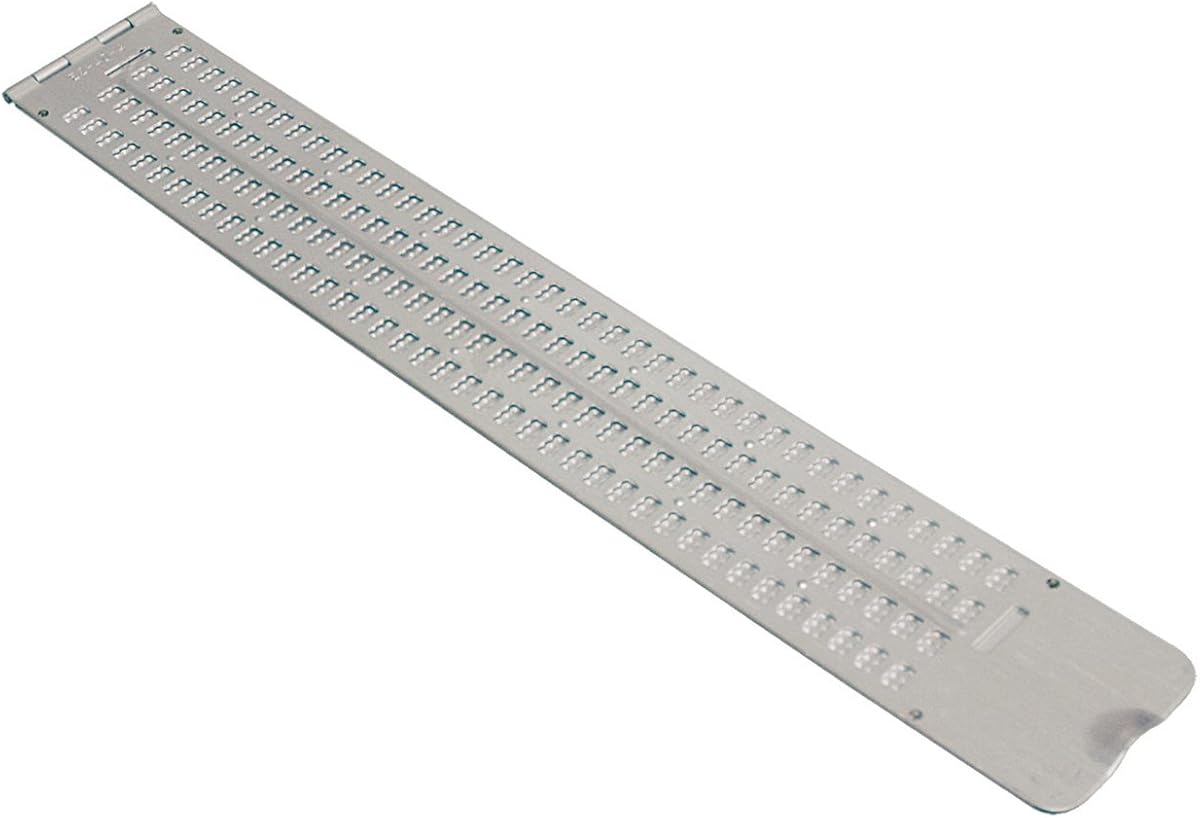
This Braille Slate offers a traditional manual method for writing Braille notes. It features 13 lines and 36 cells across with pins down orientation. It is an affordable option for those learning Braille or needing simple note-taking.
We may earn a commission when you buy through this link, at no additional cost to you.
The aluminum construction ensures durability over time. A thumb notch allows for easy opening and closing of the slate. It comes with a free stylus to start writing immediately upon purchase.
It lacks electronic features and cannot connect to computers or phones. This limitation is acceptable for offline use or educational purposes. It is lightweight enough to carry in a bag easily.
This slate is suitable for students or beginners learning Braille fundamentals. It provides a tactile way to practice writing without electronics. We recommend it for supplementary learning alongside digital devices.
Thumb notch design makes opening and closing the slate quick and intuitive.
Ideal for beginners practicing Braille writing and dot patterns manually.
We may earn a commission when you buy through this link, at no additional cost to you.
The Business Card Slate is designed for quick notes and labeling tasks. It allows embossing four lines with twelve cells per line on cards. This ultra-thin aluminum slate is easy to carry in a pocket.
We may earn a commission when you buy through this link, at no additional cost to you.
A built-in signature guide helps write names perfectly straight. It includes a durable classic stylus for immediate use. The small size makes it ideal for business cards or small labels.
It is not designed for lengthy documents or complex writing. The compact form factor limits its utility to short tasks. However, it excels in portability and ease of access.
This slate is perfect for professionals needing to label items or sign cards. It is a great starter tool for Braille demos. We recommend it for occasional use where convenience is key.
Weighing only about 1.4 ounces it fits easily into pockets or bags.
Built-in guide ensures straight lines for writing names or signatures accurately.
We may earn a commission when you buy through this link, at no additional cost to you.
This Full-Page Slate accommodates standard letter-size paper for extensive writing. It features 25 lines and 28 cells across the page. The design allows paper to snap inside the slate for stability.
We may earn a commission when you buy through this link, at no additional cost to you.
The plastic construction ensures quiet operation compared to metal slates. This makes it less disturbing in shared environments. You can leave your paper inside the slate to resume writing later easily.
Its size makes it less portable than smaller models. You should handle it with care when transporting in a backpack. However, it offers significant space for long documents or assignments.
This tool is best for students or home office use on a desk. It eliminates the need to move the slate frequently. We recommend it for anyone needing to write multiple pages at once.
Snap your sheet of paper in to write without moving the slate down.
Plastic construction produces less noise than metal slates during use.
We may earn a commission when you buy through this link, at no additional cost to you.
The Pocket Braille Slate offers a compact solution for quick notes. It provides four lines with forty cells each for writing. The aluminum body is lightweight and durable for regular use.
We may earn a commission when you buy through this link, at no additional cost to you.
It fits easily in a briefcase or backpack for transport. The pins up design ensures clear reading of written text. It is a practical tool for travel or on-the-go writing.
It does not support electronic connectivity or large files. This limits its use to short manual entries. However, it is robust and reliable for daily needs.
This slate is ideal for commuters or students carrying a bag. It offers a balance of size and capacity. We recommend it for those needing a reliable manual writing tool.
Designed to fit comfortably in backpacks or briefcases for easy transport.
Made of lightweight yet durable aluminum to withstand daily handling.
We may earn a commission when you buy through this link, at no additional cost to you.
The Hable One is a portable keyboard for typing on phones and tablets. It connects via Bluetooth to iPhone and Android devices easily. Users can navigate and type accurately with its 8 tactile buttons.
We may earn a commission when you buy through this link, at no additional cost to you.
No prior Braille knowledge is required to start using it. Onboarding calls and tutorials are free to help users master it. It allows for private typing while your phone stays in a pocket.
The battery life lasts over one month on a single charge. This is exceptional compared to typical Bluetooth devices. Voice commands like Siri work seamlessly with this keyboard.
This device is perfect for users who want to type privately on the go. It removes the barrier of needing to learn standard Braille. We recommend it for anyone wanting a simple input method.
Free tutorials and calls help you learn quickly without prior Braille knowledge.
Type and access private info while keeping your phone securely in your pocket.
We may earn a commission when you buy through this link, at no additional cost to you.
This handheld label maker produces Braille letters and numbers on vinyl tape. You spin a dial to select letters and squeeze a trigger to emboss. It includes a roll of half-inch wide tape for immediate use.
We may earn a commission when you buy through this link, at no additional cost to you.
The upper rim of the dial is embossed in Braille for selection. It allows you to organize and mark items for the blind and sighted. The device is light-weight and durable for frequent handling.
Cutting the label requires a gentle tug with the left hand. This is a specific technique to ensure clean cuts. It is a dedicated tool for creating accessible labels on storage or containers.
This is essential for organizing a home or office. It helps create clear and accessible labels for everything. We recommend it for anyone looking to improve home accessibility.
Spin the dial to select letters and squeeze the trigger to make symbols.
Comes with one roll of half-inch wide vinyl tape to get started.
We may earn a commission when you buy through this link, at no additional cost to you.
These stickers turn existing keyboards into bilingual Braille keyboards. They use clear Lexan material so original key legends show through. They are an economical option for low vision individuals or seniors.
We may earn a commission when you buy through this link, at no additional cost to you.
The 3M adhesive ensures they do not slip, ooze, or curl. Installation is a simple peel and stick method for your PC. They work well with Windows systems and standard layouts.
They do not provide tactile feedback like a physical display. This requires learning where keys are located on your keyboard. However, they are useful for sighted assistance or mixed environments.
These overlays are best for those needing to assist others or identify keys. They offer a simple way to add Braille labels. We recommend them as a low-cost solution for keyboard labeling.
Add Braille stickers to existing keyboard so you can read standard legends too.
Use peel-and-stick method for easy setup without tools or glue.
We may earn a commission when you buy through this link, at no additional cost to you.
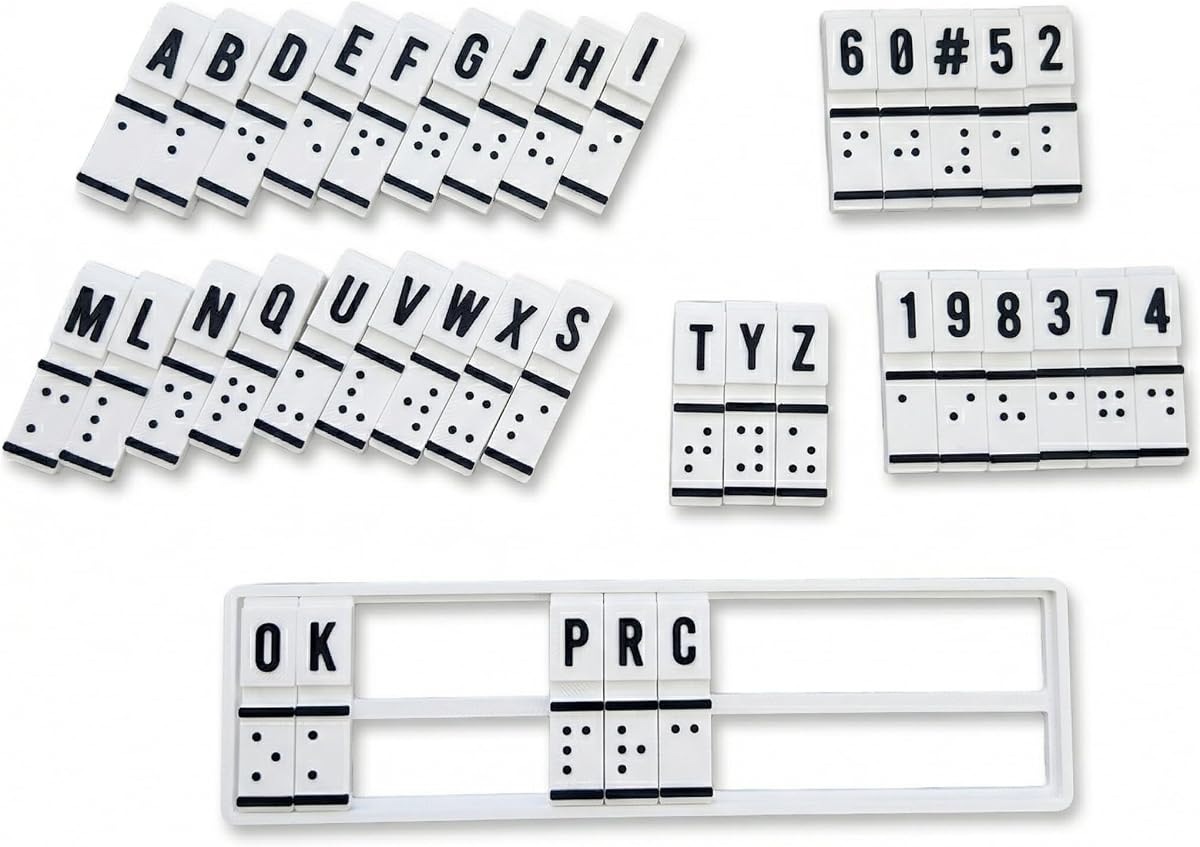
This machine combines Braille education with translation functions in one device. It features raised Braille cells for manual input and output. It is designed for visually impaired users and educators.
We may earn a commission when you buy through this link, at no additional cost to you.
It allows users to feel and create Braille directly for muscle memory. It supports simple text to Braille conversion physically. This is helpful for self-study or classroom teaching settings.
While it aims to bridge communication, user feedback suggests limitations. It is sturdy and portable for repeated use in homes. It serves as a tool for practice rather than daily computing.
This aid is best for those starting to learn Braille basics. It offers a way to practice patterns without screens. We recommend it for beginners or therapists promoting literacy skills.
Combines Braille education hands-on training and translation functions in one.
Raised cells for manual input build muscle memory for literacy skills.
We may earn a commission when you buy through this link, at no additional cost to you.
Choosing the right device depends on your specific needs and daily routine. We have outlined key factors to consider to help narrow down your options effectively.
Electronic displays come in sizes like 20 or 40 cells. A 40-cell display provides more context at once which is great for reading documents. However smaller devices are more portable and easier to carry in a bag. If you primarily write notes a manual slate might be sufficient. Consider how much screen real estate you need for your tasks.
Select a size that matches your primary use case. For travel choose a smaller refreshable unit. For desktop work a larger display improves efficiency.
Modern devices support Bluetooth to connect to phones and computers. Look for models supporting multiple devices simultaneously for flexibility. USB-C connectivity is also important for charging and data transfer. Ensure compatibility with your screen reader and operating system.
Check that the device connects to all your necessary tools. Bluetooth 5 offers better stability for daily use.
Portability relies heavily on battery performance. Most electronic displays offer around 20 hours of usage. This ensures the device lasts through a workday or travel. Manual slates do not require batteries but have no digital power.
Look for long battery life to avoid interruptions. Rechargeable USB-C is the standard for convenience.
Advanced displays include onboard apps like editors and calculators. Access to online libraries is a crucial feature for students. KeySoft Lite is a common tool included in many HumanWare devices. These tools add value beyond simple text conversion.
Ensure the device supports your required apps. Integrated libraries save time and money.
Devices should be durable to withstand daily handling. Aluminum or high-quality plastic construction is preferred. The casing should resist wear and tear. Portability requires a robust build to protect the pins.
Invest in a durable model for longevity. Materials matter for long-term use.
Intuitive controls make learning and using the device easier. Some keyboards require no prior Braille knowledge. Thumb keys and clear routing assist simplify navigation. The learning curve should fit your technical comfort level.
Choose a device with a user-friendly interface. Onboarding support helps new users significantly.
Prices vary widely from cheap manual slates to expensive electronic units. Determine your budget based on features needed. Higher cost models often offer better durability and connectivity. Consider the long-term value of added software features.
Balance your budget with necessary features. A slightly more expensive model may last longer.
Ensure the device works with your specific phone or computer. Android and iOS support is essential for mobile users. Windows and Mac compatibility is needed for desktop workflows. Check the manufacturer's compatibility list before buying.
Verify compatibility with your existing tech. Mismatches can render a device unusable.
Start by reading the user manual to understand the specific buttons and navigation. Charge the device fully before first use to ensure the battery calibrates correctly. Connect to your computer or phone via Bluetooth settings.
Clean the display surface regularly with a soft dry cloth to remove dust. Avoid using liquids directly on the pins as this can damage the mechanism. Store the device in a protective case when not in use.
Update firmware periodically to maintain performance and access new features. If using a slate ensure the paper is aligned correctly to avoid tearing. For electronic units check battery levels daily to avoid unexpected shutdowns.
A Braille Display is a device that converts digital text into tactile dots. It allows blind users to read screen content through touch. These devices connect to computers or phones to provide real-time feedback.
Choose a manual slate for simple writing without electronics. Choose a refreshable display for digital reading and connectivity. Consider your workflow and need for computer integration.
Most modern refreshable displays support iOS via Bluetooth. Check the product specs for specific compatibility with your iPhone model. Hable One is designed specifically for smartphones.
Rechargeable models typically last up to 20 hours per charge. Manual slates do not require batteries. Battery life varies based on usage intensity and settings.
Yes many devices include educational tools or support learning apps. Some units allow practicing patterns to build muscle memory. Training machines also offer structured lessons for beginners.
A 40-cell display shows more characters on screen at once. This reduces scrolling when reading long texts. A 20-cell is smaller and more portable for travel.
We have reviewed ten distinct options ranging from simple slates to advanced electronic units. The Brailliant BI 40X stands out for premium features while slates offer budget-friendly simplicity. Each device serves a unique purpose depending on your needs.
Prioritize connectivity and battery life if you need mobile access. If you focus on education a manual slate or training tool may suffice. Assess your daily tasks to find the right balance.
Prices and availability can change so verify details before purchasing. This guide aims to simplify your search for the right device. We hope you find a solution that enhances your daily life.